
(loading...) · Call or Text
(loading...)
(loading...)
What to prepare before bringing your computer in for migration or OS-related service.
This checklist exists to save you time, money, and frustration. Modern computers and software require online activation, account verification, and security codes that only you can provide. If we don't have what we need, your machine sits on our bench waiting - and that costs both of us time.
Why is all of this necessary? Because every account you use - Microsoft, Google, Apple, your email, your antivirus - now requires identity verification any time it's accessed from a new device. This is the price of being connected to the internet safely. The security is there to protect you, but it also means that setting up a new computer or migrating from an old one requires your active participation. We can't do it without you.
Please work through each section below before your drop-off appointment.
If any of this feels overwhelming, don't worry - we're happy to walk through it with you at your appointment. Please be aware that time we spend gathering account information and disabling encryption during your appointment is billable service time. Completing this checklist beforehand keeps your costs down and gets your computer back to you faster.
On Windows Home computers, Microsoft turns on drive encryption by default and does not tell you. If we need to clone your drive, replace a failing drive, or transfer your data to a new machine, we simply cannot access an encrypted drive without a 48-digit recovery key that most people don't know they have. Hardware changes like a BIOS update can also trigger a lockout, making your data completely inaccessible. Please turn this off before bringing your machine in.
Follow these steps. Don't worry - turning this off does not delete anything. It simply unlocks your drive so we can work on it safely.
Look at the very bottom of your screen. You'll see a bar stretching across the bottom (this is called the "taskbar"). Near the left side, there's a small magnifying glass icon or a search box. Click on it, and you can type to search for things.
↑ Click the search box on the left side of this bar
Click the search area at the bottom of your screen (the magnifying glass or search box), and type the word:
Click the Settings app when it appears. It has a gear icon:
In the Settings window, look at the left side and click:
Look for one of these options and click on it:
or
Which one you see depends on your version of Windows. Either way, click on it.
If you don't see either option, encryption is most likely not turned on - you're fine. Skip to Section 2.
Turn it off. You'll see either a toggle switch or a button:
- or -
Windows will ask you to confirm. Click "Turn off" or "Turn off BitLocker" (whichever appears).
Wait for it to finish. You'll see a message like "Decryption is in progress." You can keep using your computer normally while this happens. It may take anywhere from 15 minutes to a couple of hours depending on your drive.
Do not shut down your computer until decryption is complete.
Click the search area at the bottom of your screen and type Device encryption. If it opens and shows a toggle switch that's turned on, encryption is active. If the search doesn't find anything, you're most likely fine.
You can also check by looking at your drives. If your C: drive shows a padlock icon like the one below, encryption is active and needs to be turned off.
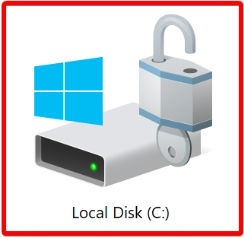
This is what an encrypted drive looks like. Notice the padlock.
We will need usernames and passwords for the accounts listed below. Please write them down or print them from your password manager before your appointment. If you're not sure about any of them, bring what you have and we'll work through the rest together.
| Account | What It Is | Your Username / Email | Password |
|---|---|---|---|
| Microsoft | The email and password you use to sign into Windows, Outlook, or Office. Often an @outlook.com, @hotmail.com, or @live.com address. | ||
| Apple ID | If you use iCloud, iTunes, or any Apple services. Usually the email address you used to set up your iPhone or iPad. | ||
| If you use Gmail, Google Chrome, Google Drive, or Google Photos. Usually a @gmail.com address. | |||
| Email (ISP) | If you have email from your internet provider - Comcast/Xfinity, AT&T, etc. | ||
| Antivirus | Malwarebytes, Webroot, Norton, McAfee, Bitdefender, or whichever security software you use. | ||
| Software Licenses | Microsoft Office (if bought separately), Adobe, QuickBooks, etc. Check your email for purchase receipts. | ||
| Other: ________ | Any other accounts you use on this computer. | ||
Most accounts now send a verification code to your phone (by text or an app) before they'll allow a sign-in from a new computer. No one can bypass these codes. When we're setting up your new machine and a service asks for a code, we need you to respond right away because the codes expire in 1-2 minutes.
If you use an authenticator app (like Microsoft Authenticator or Google Authenticator), make sure it's on your phone and that you know how to open it. We may ask you to read us a code from it.
If your email is only accessible on the computer you're dropping off, please let us know in advance so we can plan for that.
We will transfer your files as part of the migration. However, you should always have your own backup of anything irreplaceable - photos, documents, anything you cannot afford to lose. This is your safety net.
Migrations typically take 3 to 5 business days, depending on the scope of work and how quickly you can provide passwords and verification codes when we need them. A migration where we're waiting a day for a code is a migration that takes an extra day.
We'll give you a more specific estimate when we discuss your situation at drop-off.
Print this page and check off each item before your appointment: